See your photos clearly.
Built for anyone who wants to finally organize their photos and documents without spending hours on it — Scope makes life simpler.


Scope follows the Finder's automatisms, but fills in what it's missing for real library management: it starts by showing you where each photo actually is, on your Mac and on your external drives, with a tag system to sort them yourself and find them all in an instant.
It's not limited to photos: it also opens your documents, videos, and archives, without ever converting or moving anything.
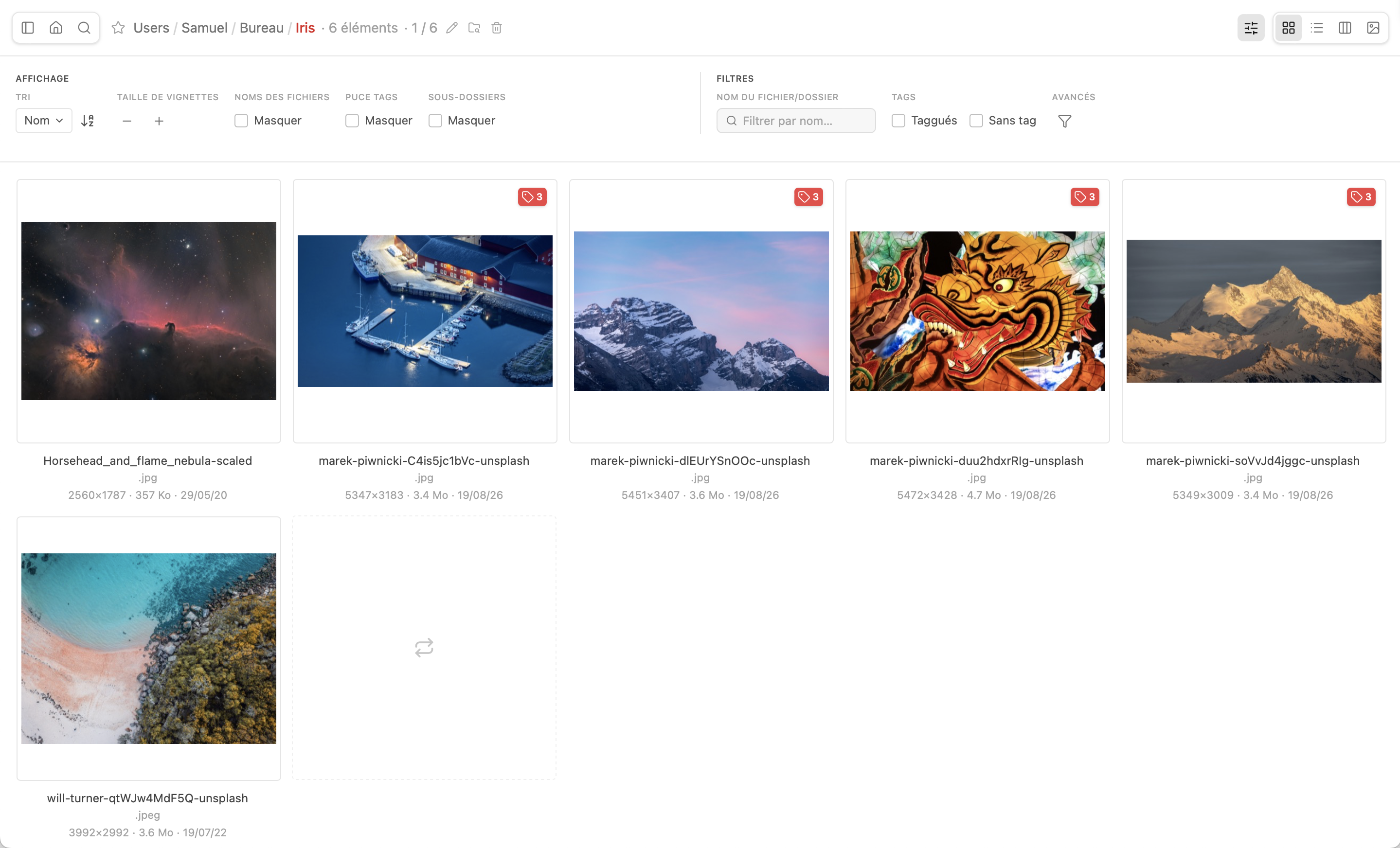
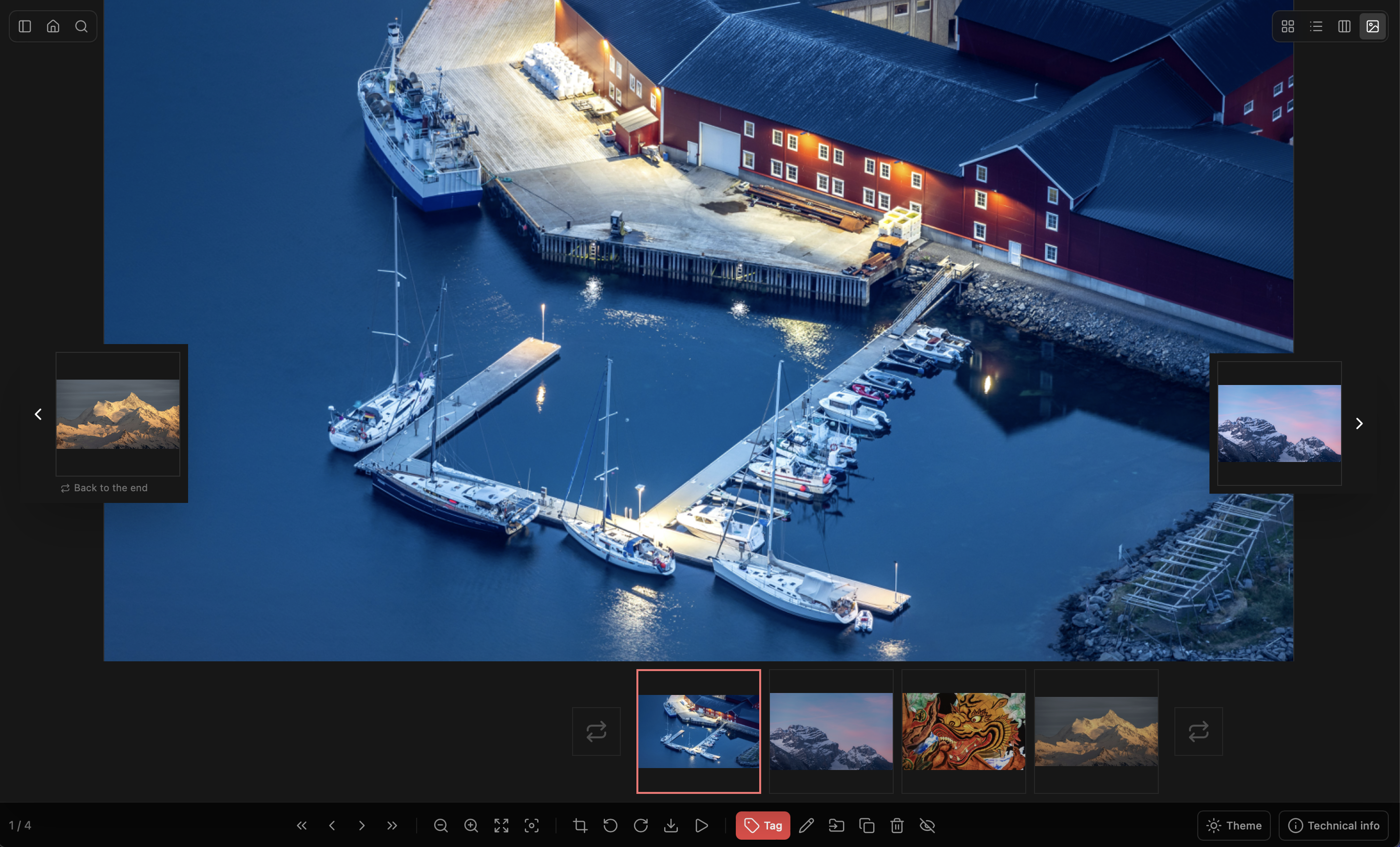
Thumbnail grid, list or column view, Spotlight search across the whole disk, multi-level favorites, side-by-side photo comparison, non-destructive crop and lossless rotate — all driven by the same Finder shortcuts. No AI, no subscription needed for any of it.
Discover Scope
Scope was born from a Mac user tired of the Finder's gaps, who ended up filling them in himself rather than living with them. The result: an interface as rich as it is logical, with all the shortcuts you already know plus a few extra tools — search, iPhone import, PDF merging, export — without ever turning into a Photoshop-style maze of menus.
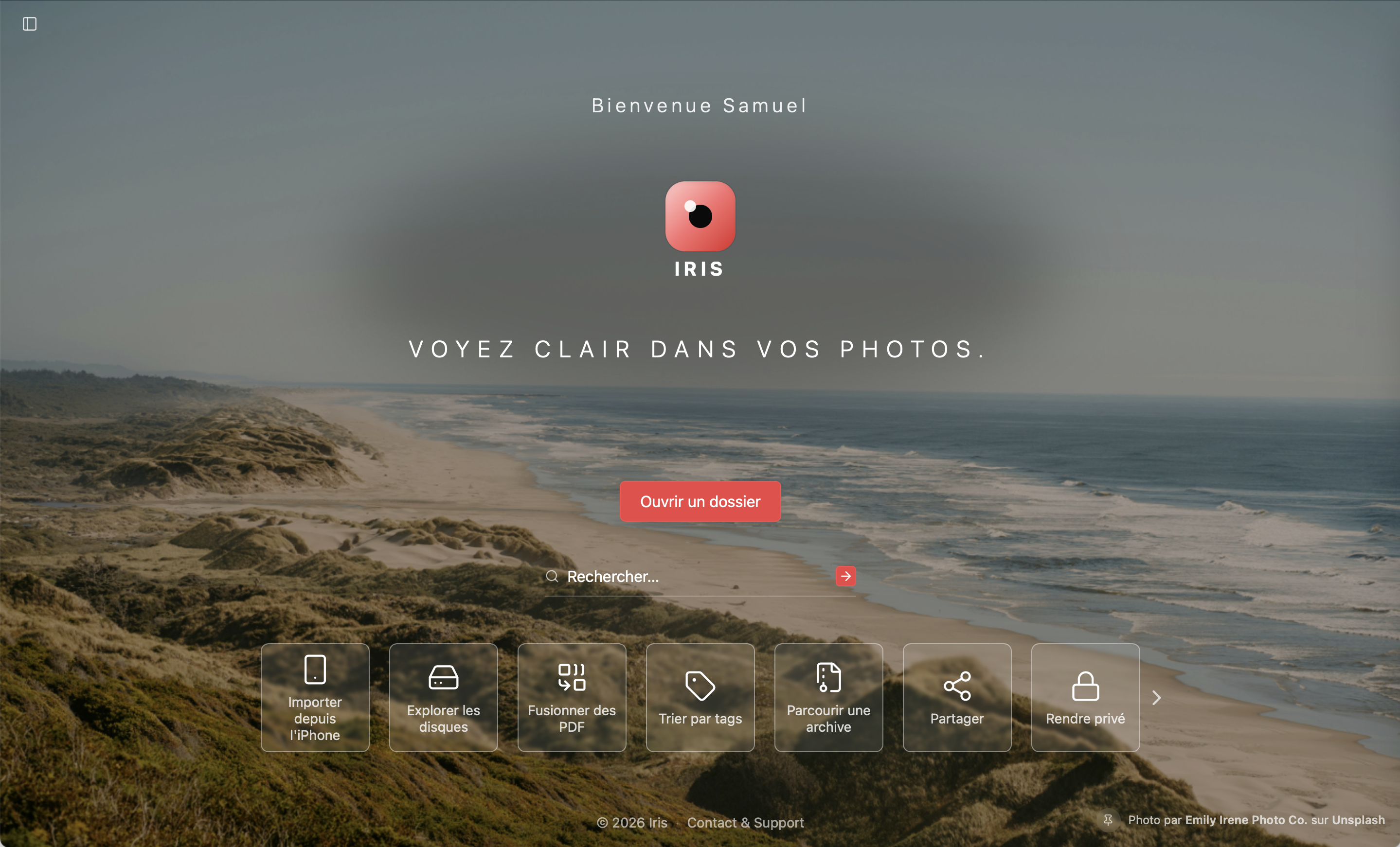
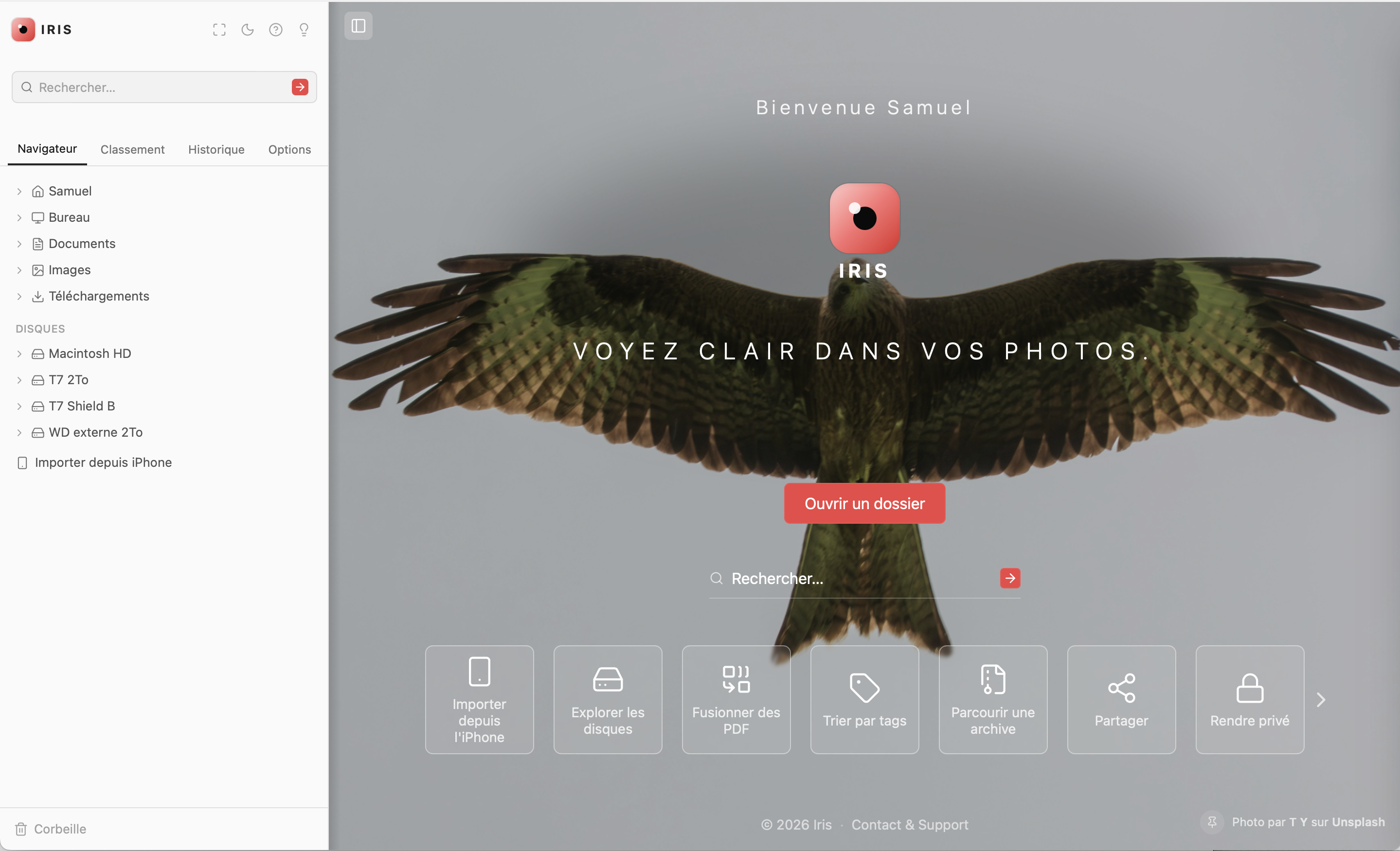


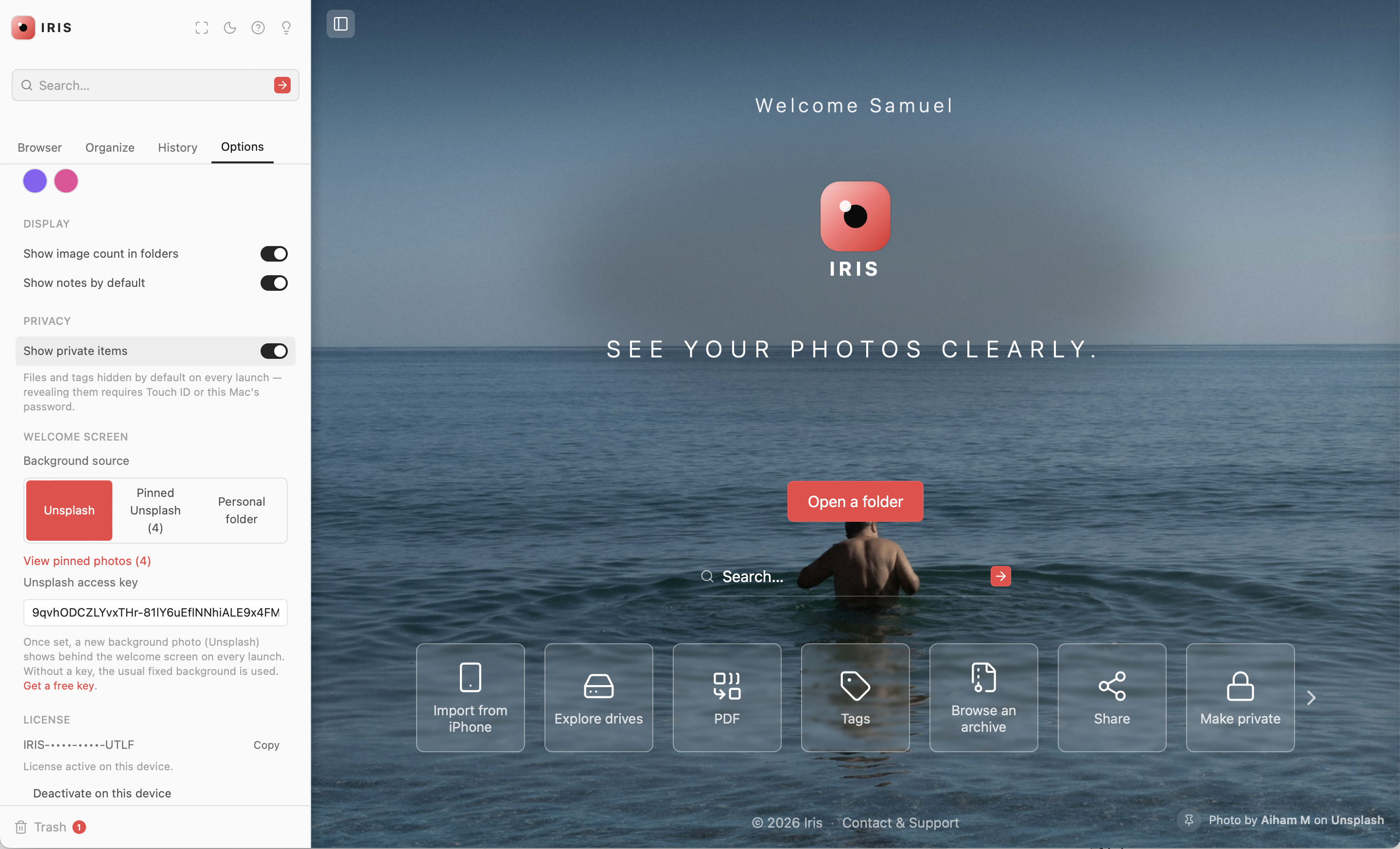
Home screen, fully customizable
Plainly put
What sets Scope apart
Three simple choices, made for how you'll actually use it — not to impress.
No AI
We've got nothing against artificial intelligence — it's great at speeding up tasks and automating workflows. But sorting your family photos isn't about productivity: looking at them a second time while you tidy up is part of the fun.
No subscription
One license, one price, forever. Scope doesn't run a server or an AI model on your behalf — no reason to charge you an overpriced subscription for zero benefit, or lock a single feature behind a "pro" tier.
For you
Built for amateurs, not pros: no layers, no complicated workflow, just your photos finally shown at their best. Scope is also the answer for finally centralizing years of photos scattered across your iPhone, your Mac, and hard drives forgotten in a drawer.
In practice
How Scope fits into your day
Overview
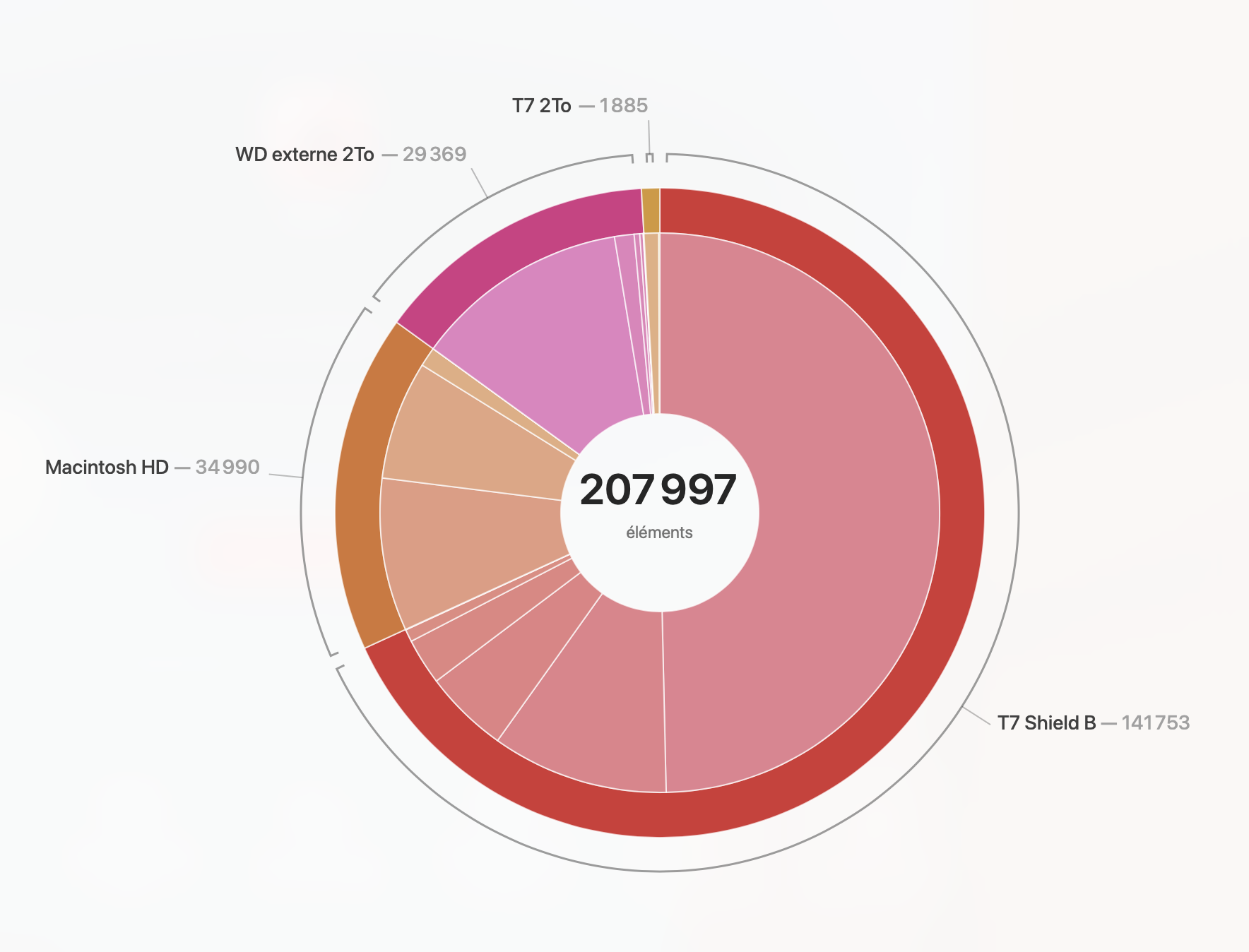
Where your photos really are
A ring chart reveals at a glance how your photos and documents are spread across your Mac and external drives — and doubles as a shortcut to jump straight there.
Import
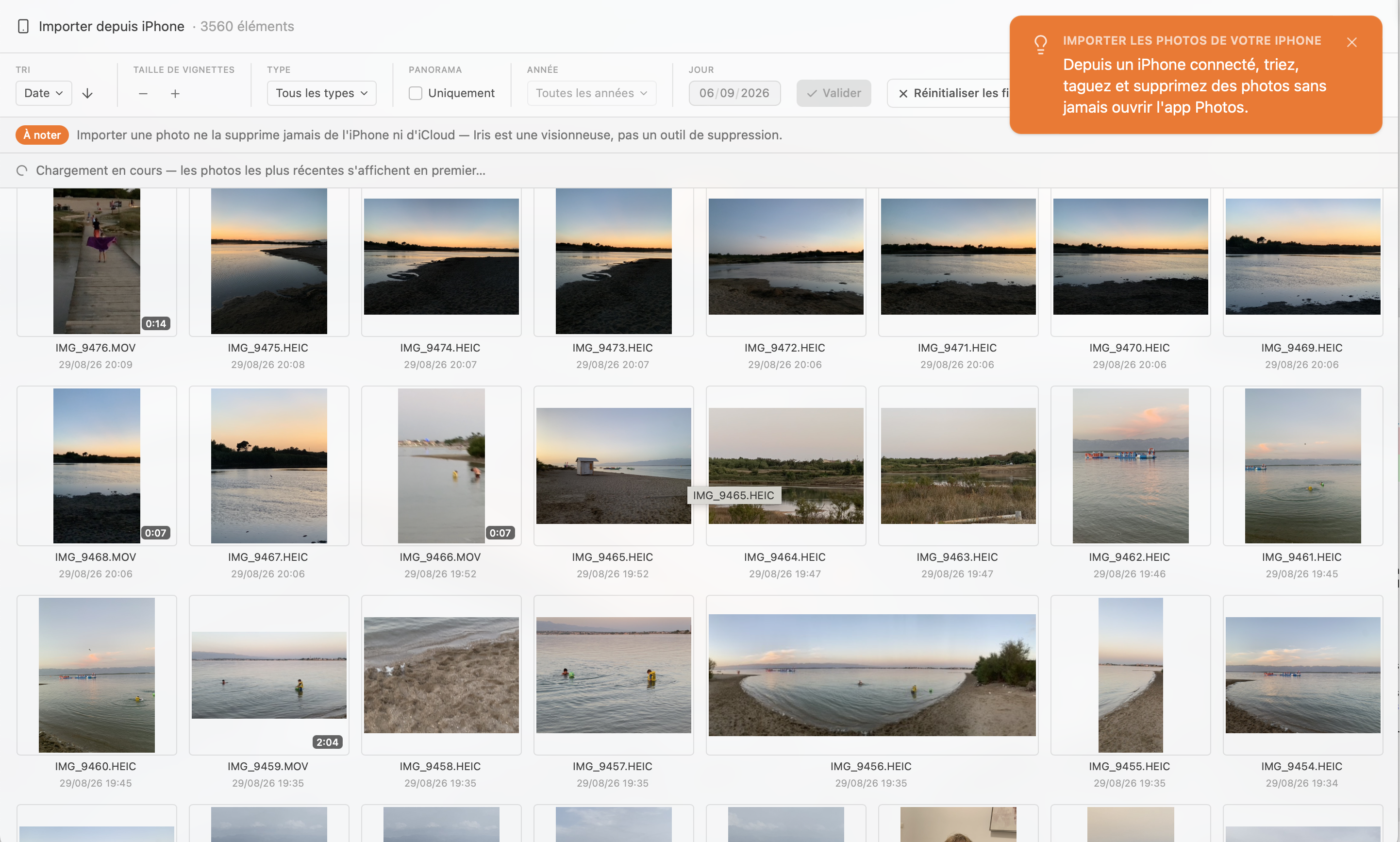
Your iPhone, no detours
Plug in your iPhone and pull your photos and videos straight into Scope, no need to open the Photos app.
Organization
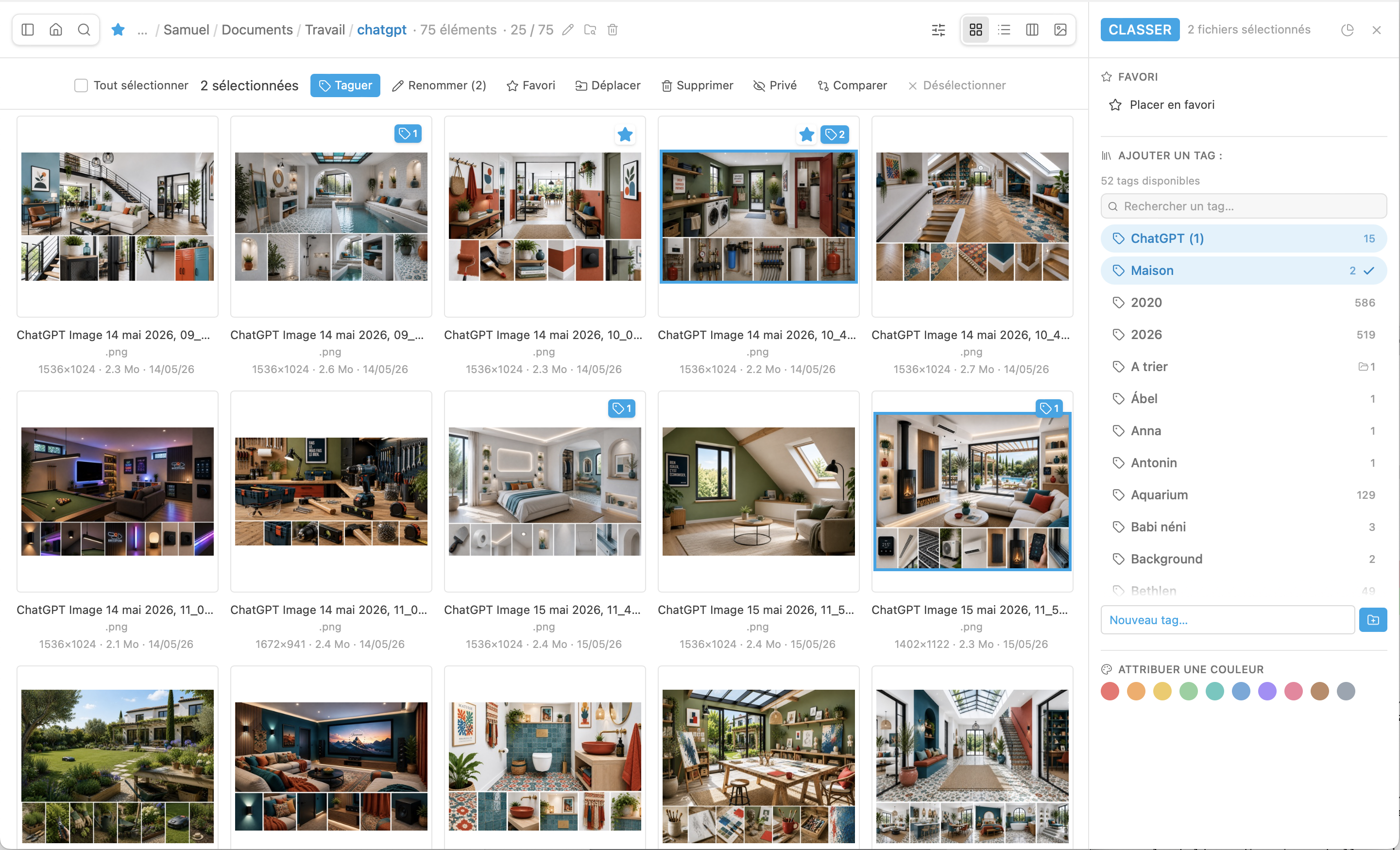
Sort it your way
Sort with as many tags as you like — free keywords, a photo can carry several — plus 10 fixed Lightroom-style colors and a simple favorite star. Every tag becomes a collection you can browse from the sidebar, instantly gathering photos from different folders without ever moving anything on disk.
International
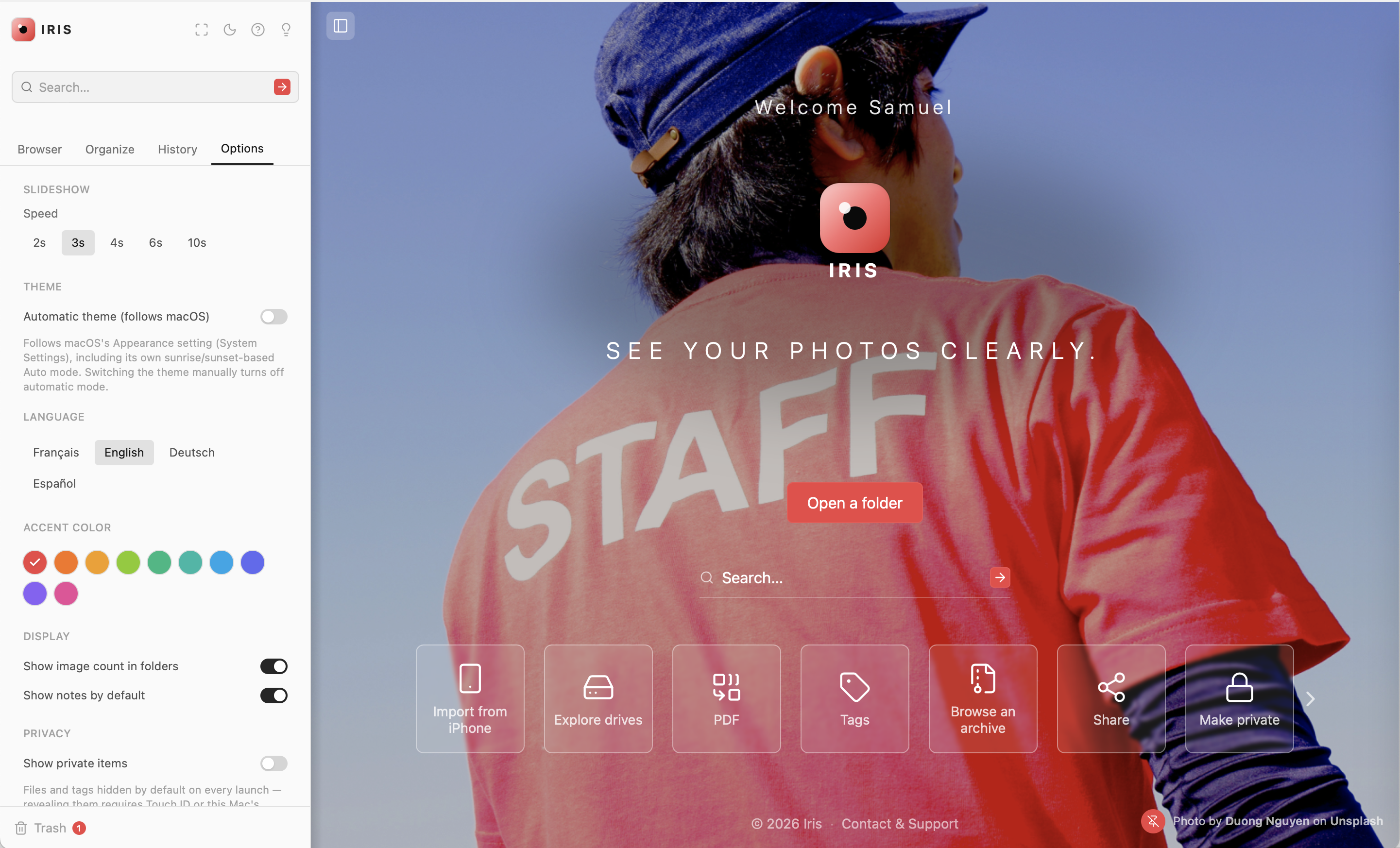
In your language
Interface available in French, English, German, and Spanish — switch anytime in settings, no restart needed.
Privacy
Some photos stay yours alone
Right-click a file or folder to make it private: it disappears from every view and from search. To bring it back, Touch ID or your Mac's password is required — never one more password to manage inside Scope.
Features
Why Scope
Merge and create PDFs
Turn a photo into a PDF in one click, or merge several PDFs and images into a single document, page by page — no other software needed.
Compare photos
Pick the best shot from a burst at a glance — up to 4 photos side by side.
Lossless editing
Non-destructive crop — always a copy next to the file, the original untouched — and lossless rotate, with a live preview and explicit confirm.
Built for you
Automatic light/dark theme, your choice of accent color, a personal or Unsplash home screen background, and an interface available in French, English, German, and Spanish.
Extended search
Find a photo anywhere on your Mac with Spotlight, plus advanced filters (type, extension, size) — no homemade indexing, no waiting.
History
A dedicated tab keeps track of recently opened folders and files — never retrace the same path twice.
Ready to see your photos clearly?
2h free trial, no commitment, with every feature included.


No photo is ever sent to or stored on an Scope server.
Your photos stay on your machine, down to the last byte.
No photo is ever sent to or stored on an Scope server.
Hidden by default on every launch, revealed only with Touch ID or your Mac's password.
Keyboard shortcuts
Built for efficiency
Plenty of keyboard shortcuts, including the Finder's own — your macOS reflexes already work here, nothing new to learn.
Navigation
- Previous / next photo← →
- Same, in Columns view↑ ↓
- First / last photoHome / End
- Open the selected fileEnter
- Step back (zoom, grid, full screen…)Esc
- Back to the home screen⌘H
- Switch sidebar tabs⌃Tab
Zoom & viewer
- Fit ↔ 100% (or play/pause video)Space
- Keyboard zoom+ −
- Reset zoom0
- Full screenF
- Loupe mode⌘⇧Z
- Technical info panel (EXIF)⌘I
- Light/dark theme⌘K
Views
- Grid viewFinder⌘1
- List viewFinder⌘2
- Columns viewFinder⌘3
- Single imageFinder⌘4
- Thumbnail/icon size⇧+ ⇧−
Selection & files
- Select allFinder⌘A
- Deselect all⌘⇧A
- Toggle favorite⌘D
- Tags panel⌘T
- Rotate −90° / +90°⌘L ⌘R
- Copy / cut / paste⌘C ⌘X ⌘V
- Move to trashDelete / ⌫
- Undo deletionFinder⌘Z
Window
- Open a folderFinder⌘O
- Search the entire diskFinder⌘F
- Toggle the sidebar⌘B
- Start/stop the slideshow⌘P
- Show shortcuts⌘/
System requirements
macOS 11 (Big Sur) or later. Works on Intel and Apple Silicon Macs (via Rosetta 2).
How do I set Scope as the default viewer on Mac?
Select a file (photo, PDF…), press ⌘I or right-click → "Get Info".
In the "Open with" menu, choose Scope, then click "Change All…" to apply it to every file of that type — repeat for each type (photos, PDFs, videos…).
Support
Found a bug, got an idea, or just a question? Scope is built by one person — every message matters and gets a real reply.
support@scope-photo-viewer.com